Projects by folder
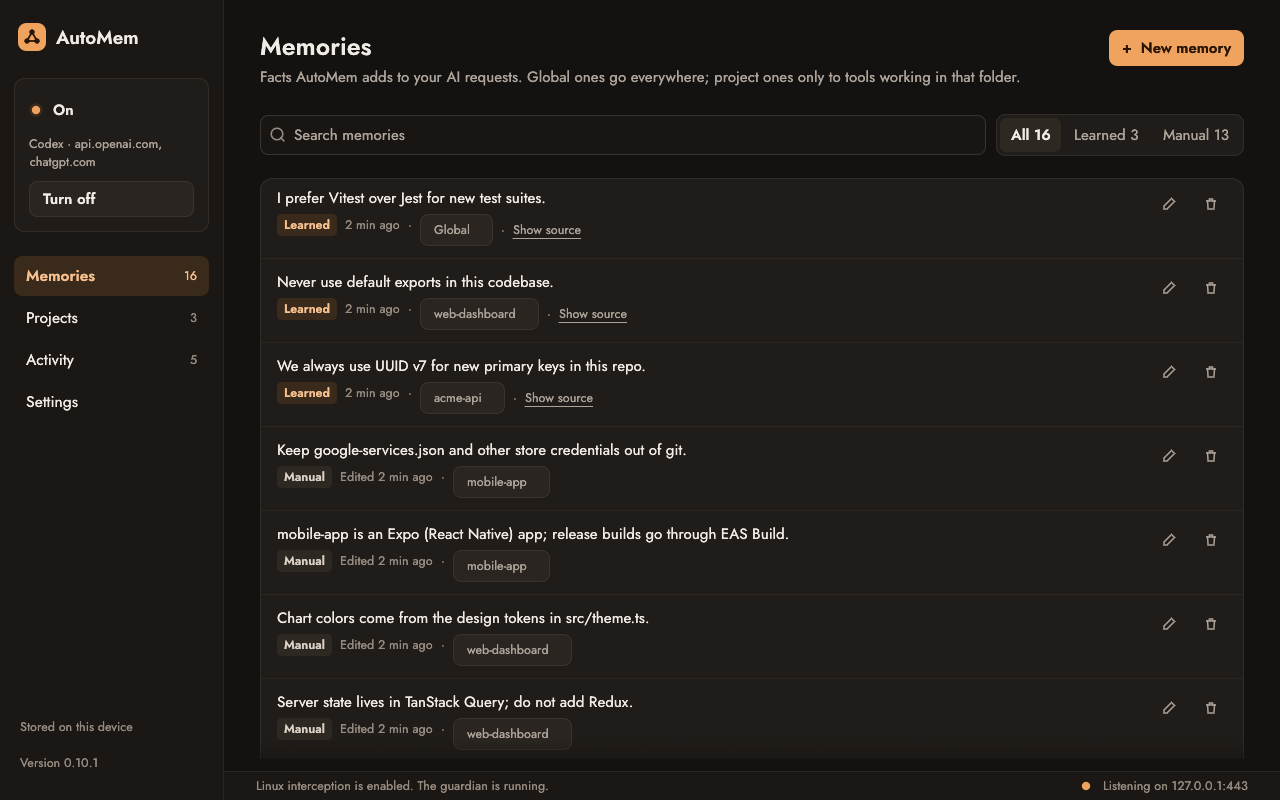
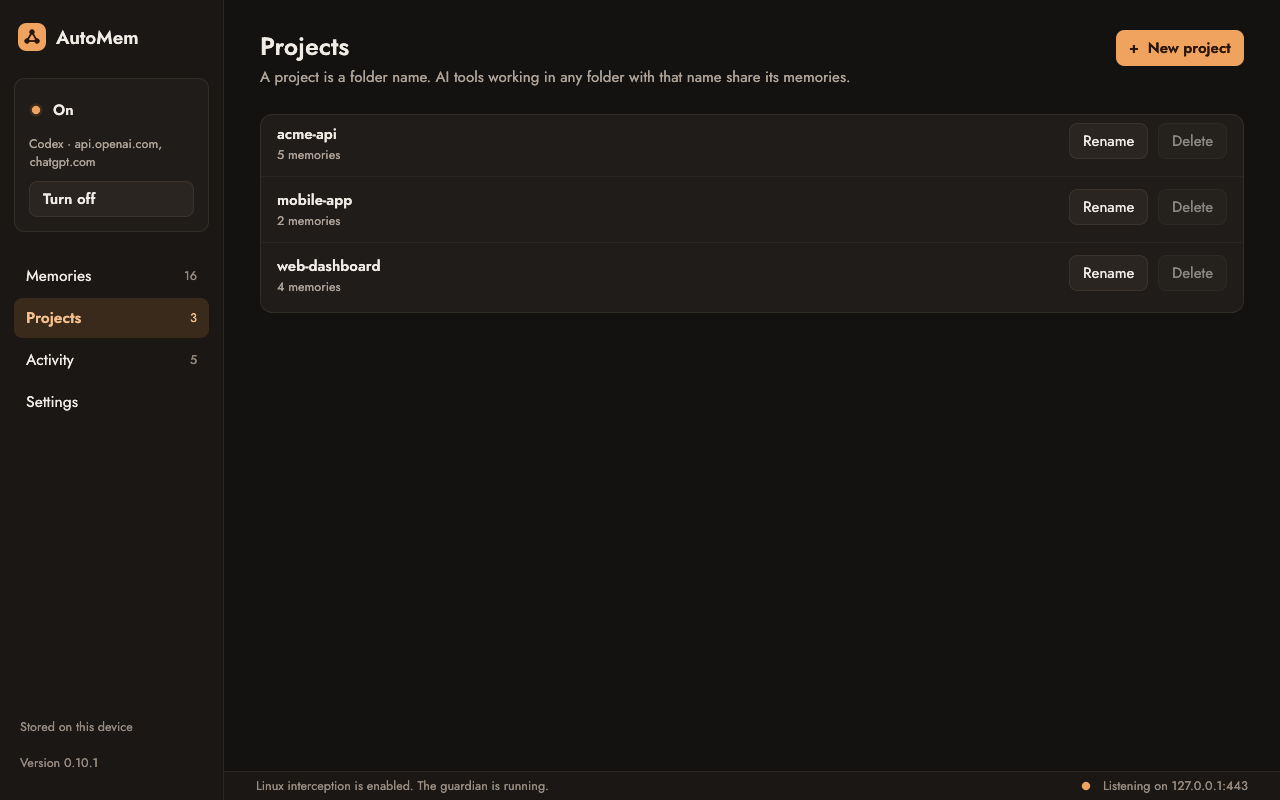
Memories belong to the folder you work in, or are Global. One repo's rules never reach another, and Claude Code worktrees count as their repo.
AutoMem learns your preferences, project conventions and decisions from your conversations, and keeps them in a library on your computer that you can read and edit. Then it adds the relevant ones to later requests, in Claude Code or Codex, without changing either tool.
Claude CodeYou, in my-app
From now on, use redb, not SQLite, in this project.
AutoMem learns it
Library Saved
From now on, use redb, not SQLite, in this project.
my-appLearned
Added to the next request
CodexLater, in my-app
Add a cache for parsed files.
+ 1 memory from AutoMem
The problem
Claude Code and Codex each keep their own notes, and neither knows what you told the other. Switch tools, or start a new session, and you explain it all again.
Or you copy instruction files such as CLAUDE.md and AGENTS.md between tools by hand.
What you end up repeating
How it works
AutoMem sits between your AI tools and their providers, only for the hostnames you turn on. Your requests go straight to your provider; there is no AutoMem server in between.
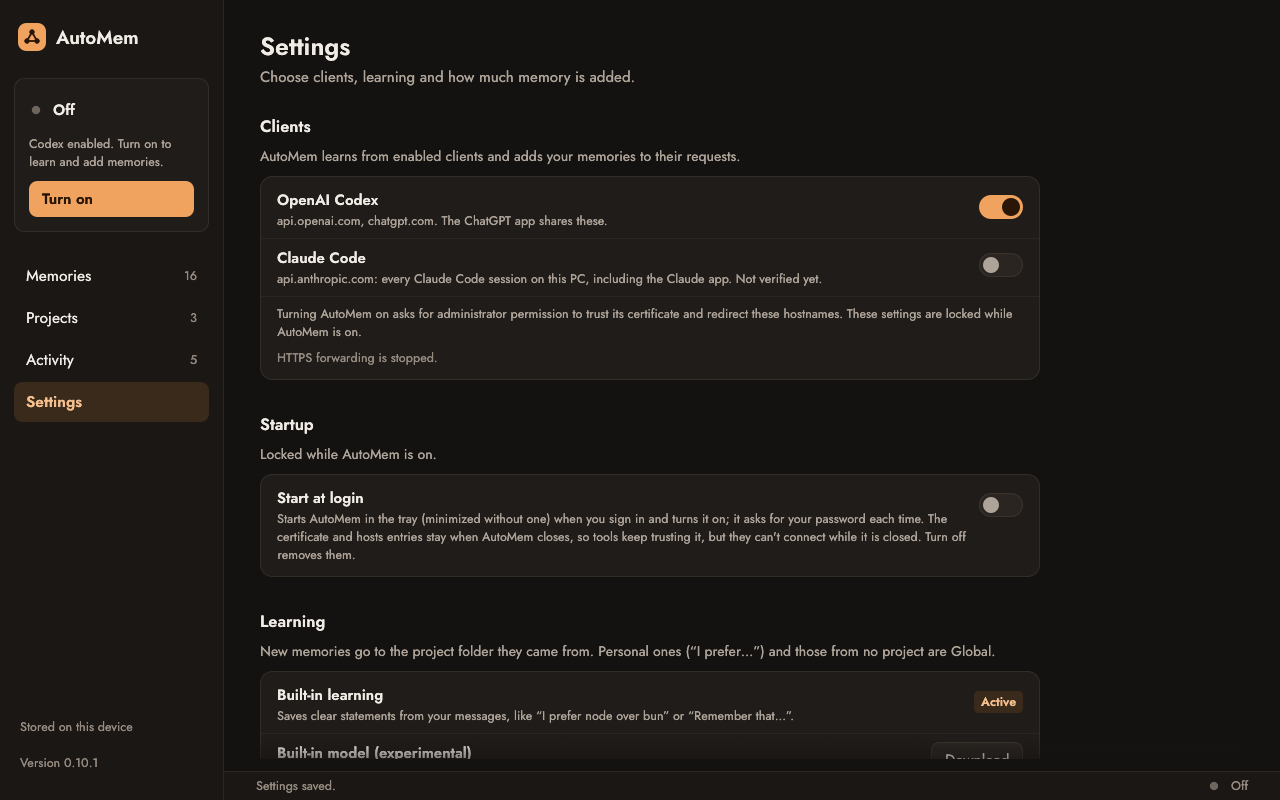
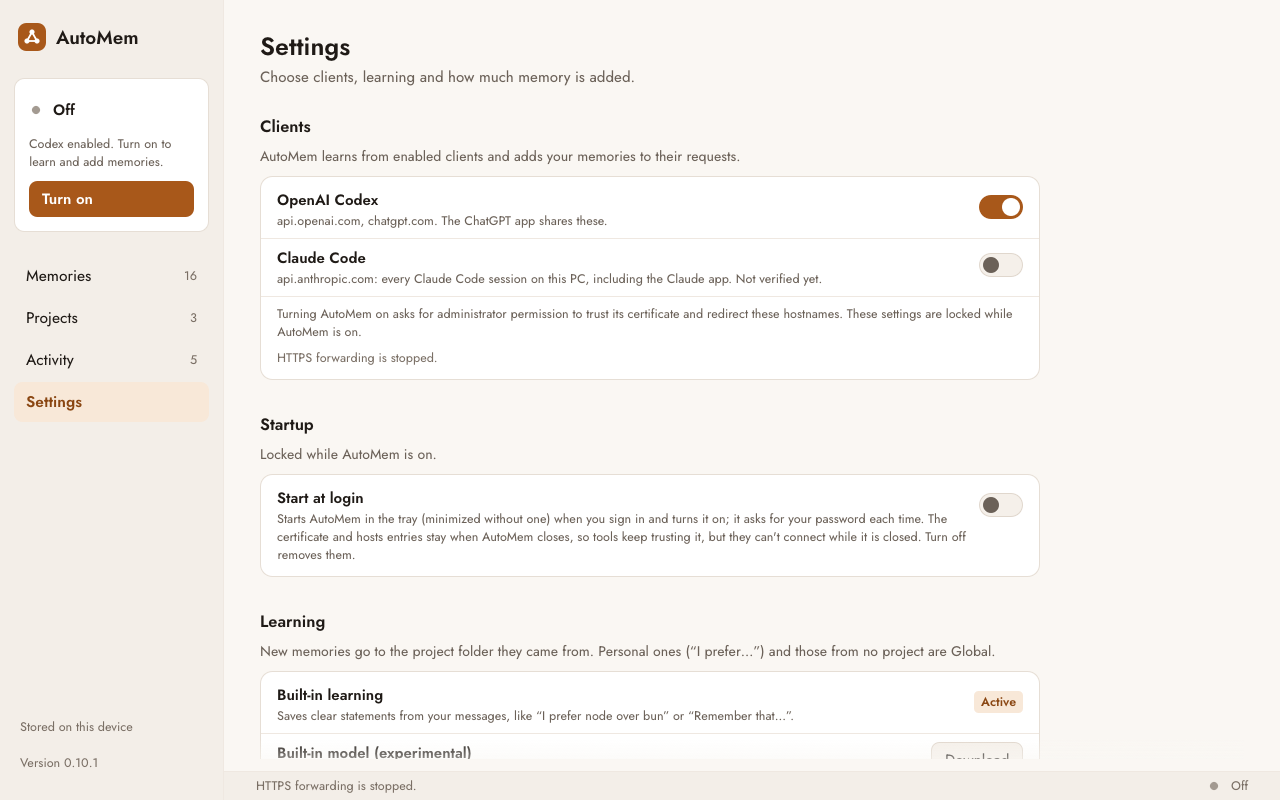
Choose Claude Code, Codex or both in Settings, then select Turn on. AutoMem points only their provider hostnames to itself.
Your tools keep their normal URLs and your own accounts. Each request goes on to the real provider, and the reply comes back unchanged.
Clear statements in your messages become memories, saved under the project folder or as Global.
Later requests, in either tool, get the relevant memories as one marked note on your latest message.
Features
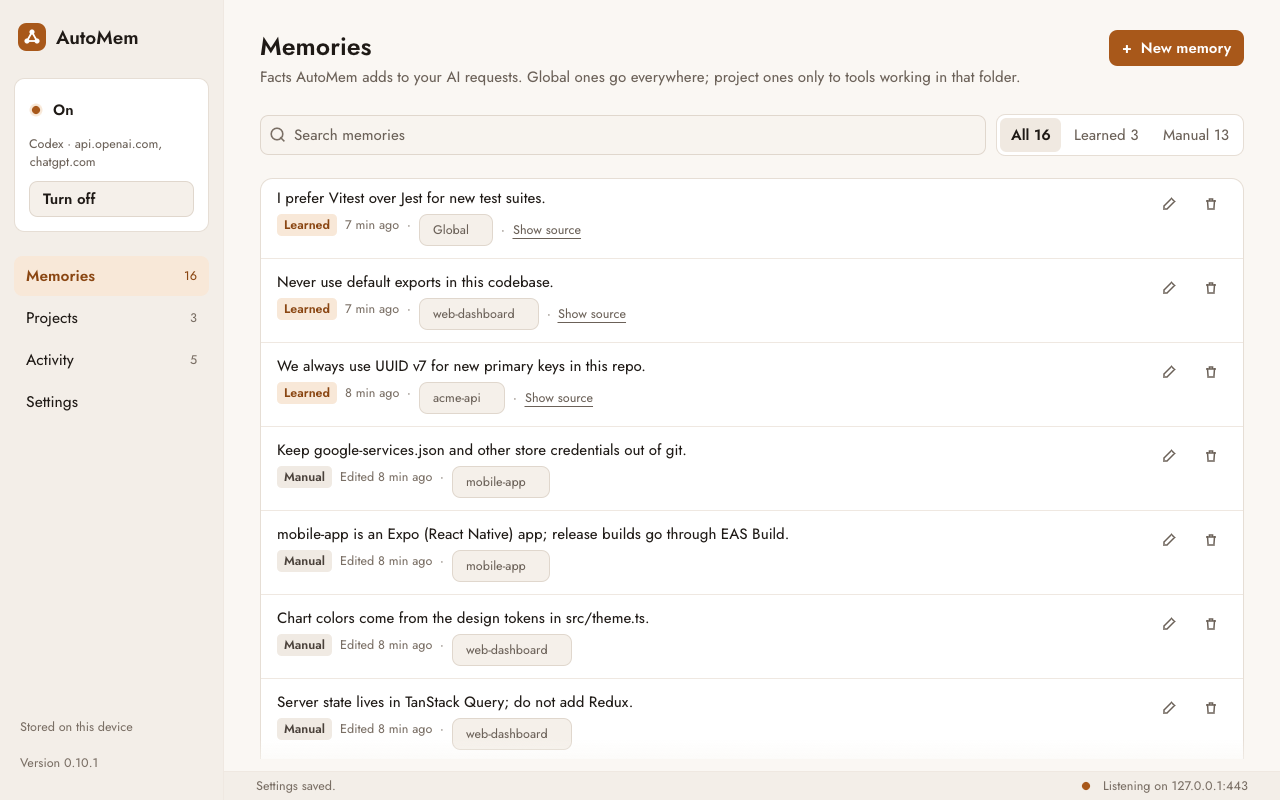
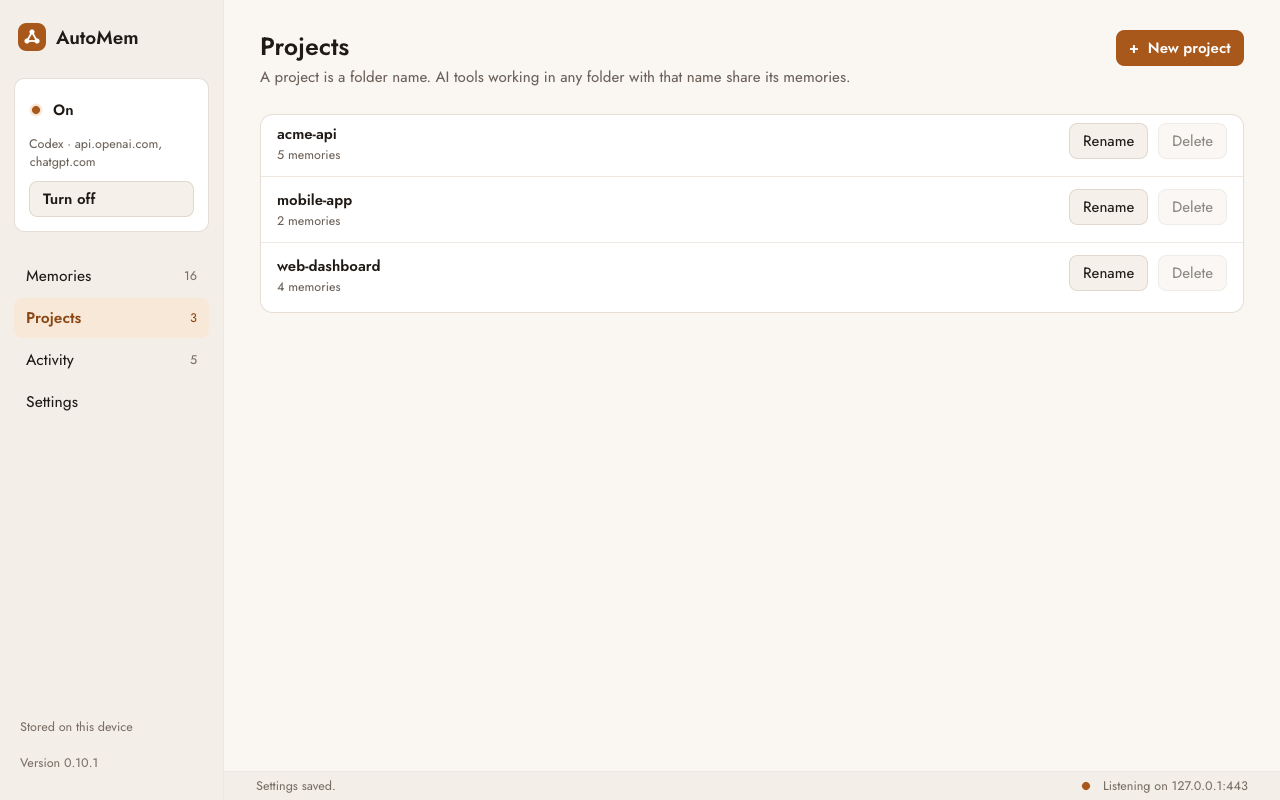
Memories belong to the folder you work in, or are Global. One repo's rules never reach another, and Claude Code worktrees count as their repo.
Add, edit, search or delete any memory. Each learned memory shows the message it came from.
Built-in rules save clear statements like “Always…” or “From now on…”. Or try the experimental local model (Qwen3 0.6B, on your CPU), or your own model endpoint.
Each message keeps the memories it got when it was sent. Earlier messages never change, so the tools' prompt caches still work.
Subagents, titles, summaries and safety reviews pass through untouched. They get no memories, and nothing is learned from them.
No plugin, no MCP server, no new URL. Claude Code and Codex keep their settings and your own accounts.
A portable Windows app you unzip and run, plus builds for macOS and Linux.
No Electron, browser or JavaScript runtime. One small executable, with pure-Rust TLS.
Screenshots
Security and privacy
To add memories, AutoMem reads your AI tools' HTTPS traffic on your own computer. Here is what that means, in plain words.
AutoMem makes its own certificate authority when you turn it on. The private key stays in memory and is never saved, so it never leaves your computer. Turn off removes the certificate again.
With Start with Windows (Start at login on macOS and Linux), the key is kept so your tools keep trusting it. It is protected by Windows (DPAPI), the macOS keychain or a Linux keyring; without a keyring, only by file permissions.
AutoMem handles only the provider hostnames of the tools you turn on: api.anthropic.com for Claude Code, and api.openai.com and chatgpt.com for Codex. Nothing else goes through it.
Other apps that use those hostnames pass through too, unchanged. The ChatGPT website and app share chatgpt.com with Codex.
Turn off restores your hosts file and removes the certificate AutoMem added. If AutoMem stops unexpectedly, a separate helper undoes the setup, and automem --recover cleans up after a crash or power loss.
With Start with Windows on, the setup stays while AutoMem is closed, so those tools can't connect until it starts again or you run --recover.
Memories and captured conversations stay in a library on your computer, as plain text (not encrypted). Login headers and cookies are never saved. Common secrets such as API keys are removed from captured text, but not every sensitive passage can be recognised.
There is no AutoMem account and no AutoMem server.
Your AI provider gets your request as usual, with the added memories, over HTTPS that AutoMem checks against the provider's real certificate. To find the provider, AutoMem asks Cloudflare's public DNS (1.1.1.1).
Built-in learning and the local model run on your computer. If you set your own learning endpoint, it gets selected text from your messages and existing memories of the same scope, with its own key, never your tools' credentials.
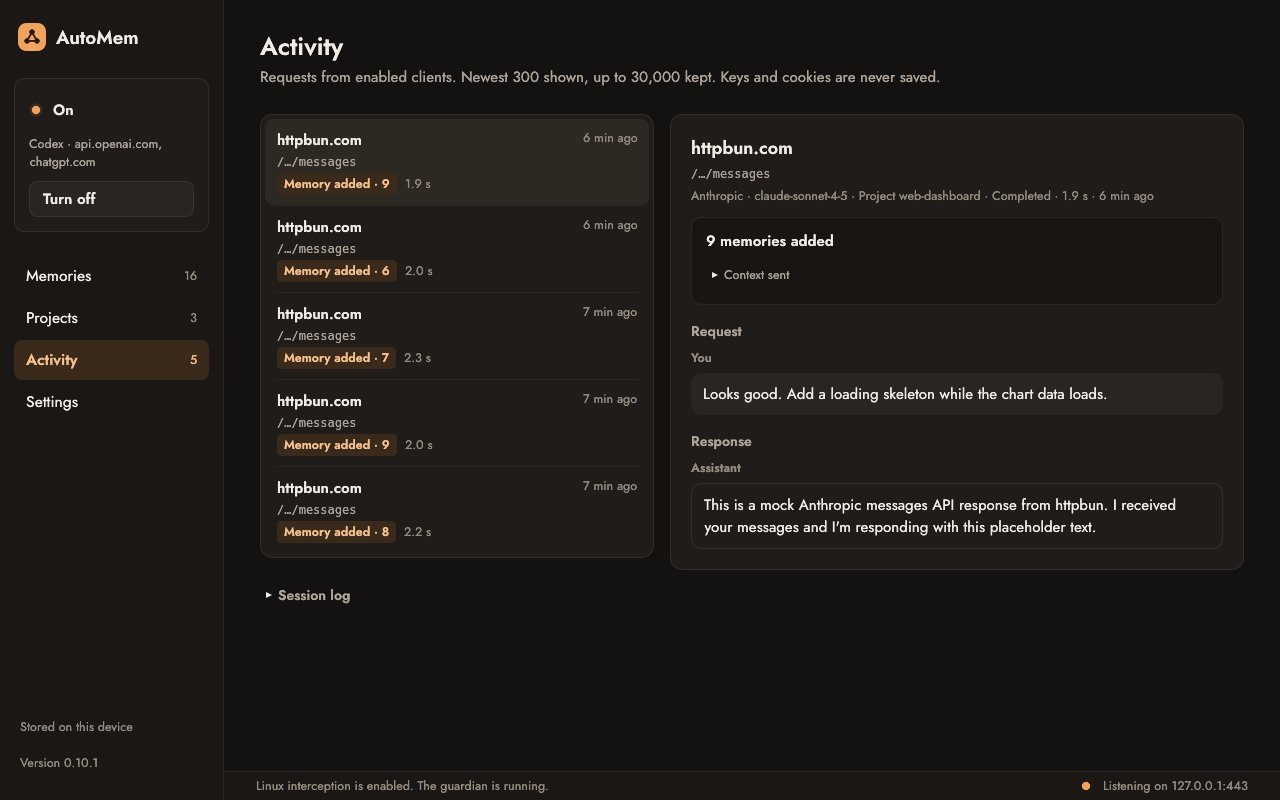
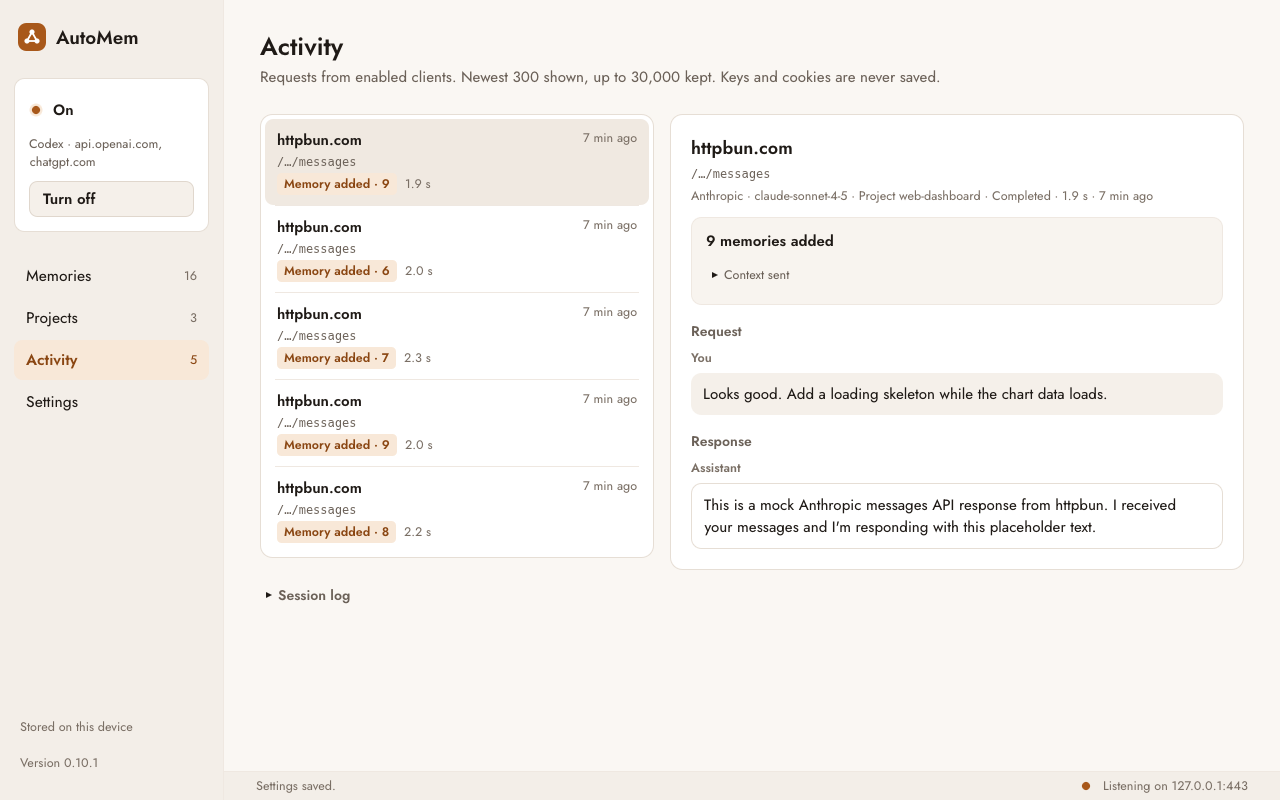
Activity shows every request: its project, the memories added and the exact context sent. Each learned memory shows the message it came from.
You can edit or delete any memory, or export the whole library.
Download
Free, with no account. Unzip and run: there is no installer.
AutoMem-0.10.1-windows-x64.zip771f167b5f3bcdbb658aafc1760ca50d56cfff439af34f96691323e9618576e8automem.exe.AutoMem-0.10.1-macos-arm64.zipAutoMem.app.xattr -dr com.apple.quarantine AutoMem.appNODE_EXTRA_CA_CERTS set to tls/ca.pem in AutoMem's data folder (Settings shows where).AutoMem-0.10.1-linux-x64.zip43c361f32e14d4587b9d66a0b5bc12cbc85bbbc17971ca6f1a7d8fc0e9e257fc./automem (if needed, first chmod +x automem).NODE_EXTRA_CA_CERTS set to tls/ca.pem in AutoMem's data folder (Settings shows where).automem --recover.The result should match the SHA-256 on the card.
certutil -hashfile <file> SHA256shasum -a 256 <file>sha256sum <file>Status
AutoMem is new. This is what works today, and what comes next.
Updated 30 October 2026.